Best overall: Canva. Best for layered photo edits: Adobe Photoshop. Best for browser-based edits without an account: Photopea. Those are the clearest picks among the best YouTube thumbnail maker tools in 2026. If your channel needs someone to own the thumbnail-and-title decision rather than hand you another editor, Clickologi is a design and packaging service, not a thumbnail maker tool.
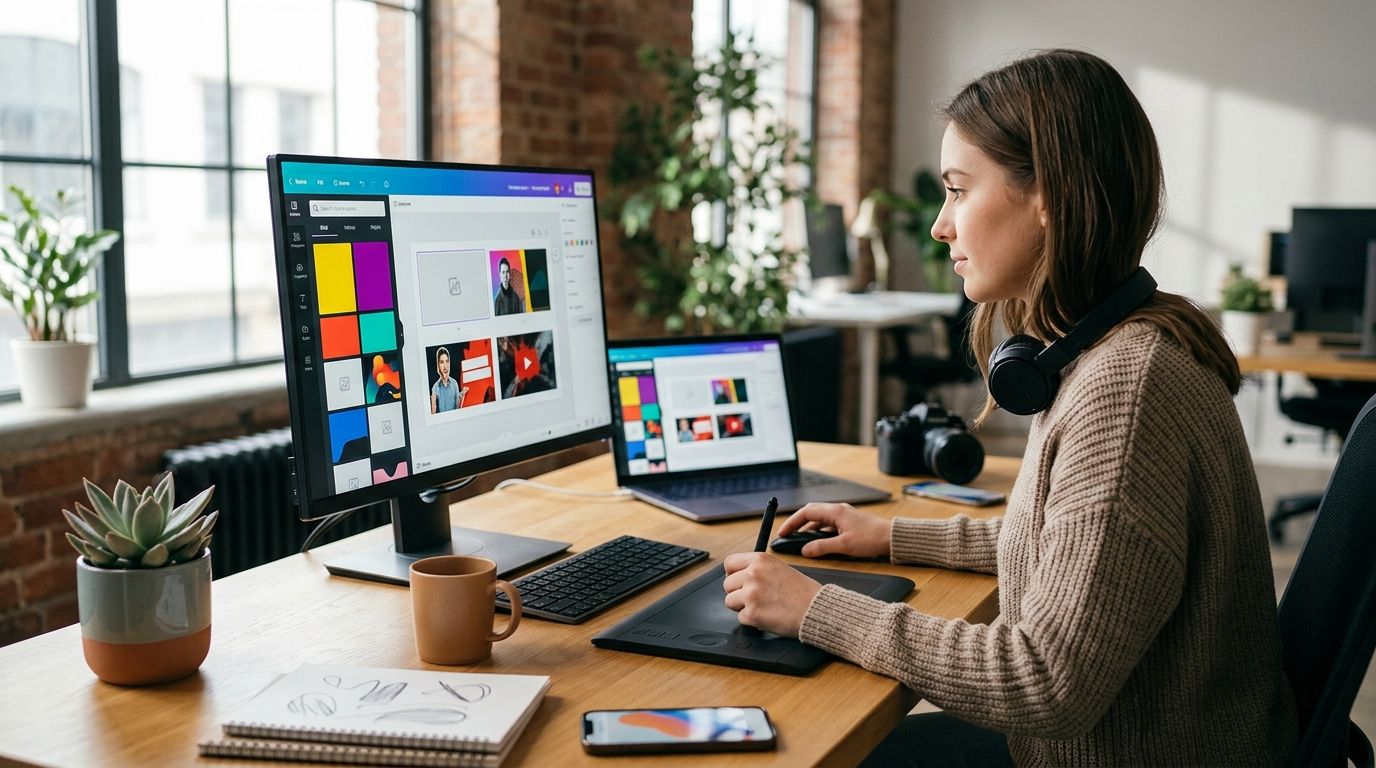
- Canva is the best YouTube thumbnail maker tool for creators who need a repeatable design workflow.
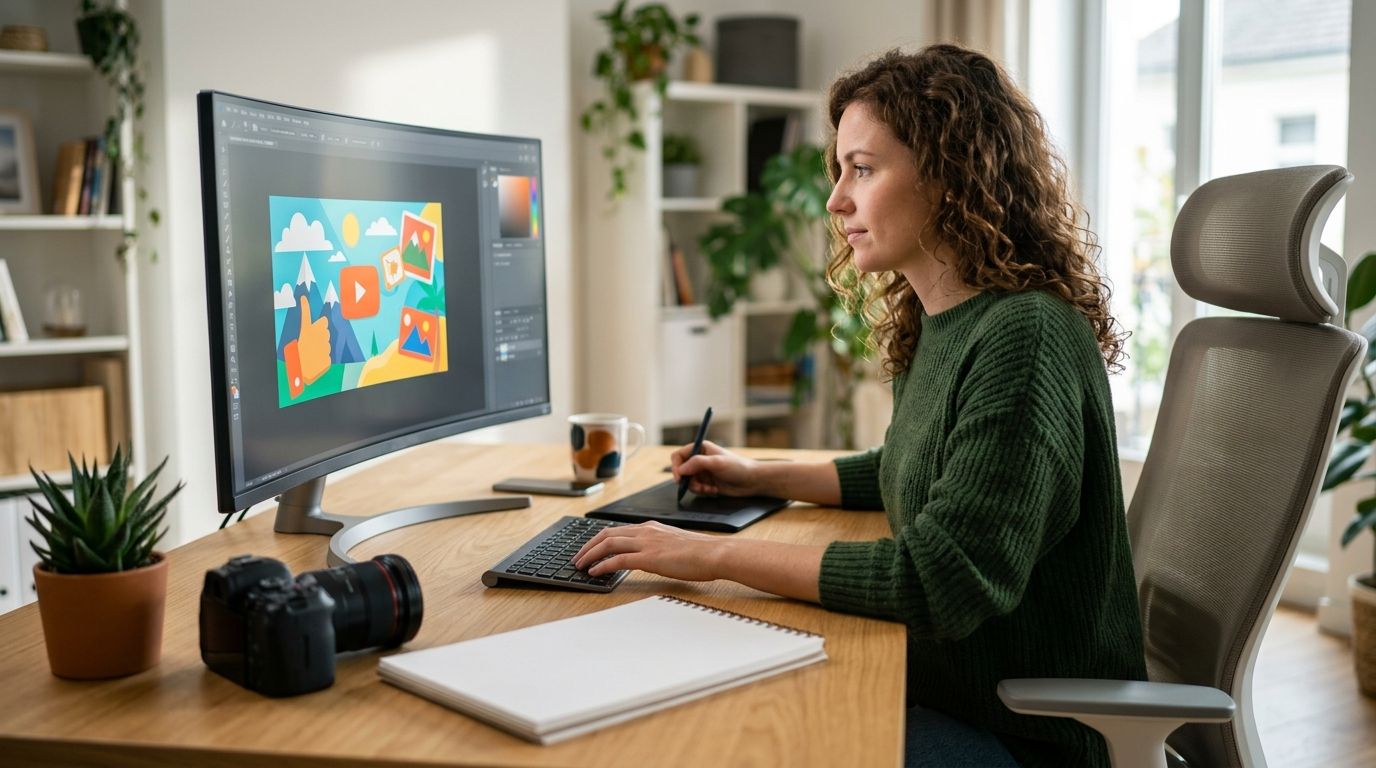
- Adobe Photoshop fits detailed photo edits; Photopea handles layered edits in a browser.
- Pair every thumbnail with its title before you publish: each must add information the other leaves out.
- Clickologi is a service alternative for creators who want thumbnail design and packaging handled for them.
Why this matters
A thumbnail is not a poster for your video. It is one half of the packaging that asks someone to choose your upload over the others in their feed. The title supplies context; the thumbnail supplies a visual reason to stop. If both repeat the same words, you waste space.
The right editor depends on what slows you down. A solo creator publishing regularly needs a layout that is quick to revise. A documentary channel using mixed-quality source images needs more control over crops and contrast. An automotive or fishing channel needs the subject to remain obvious when the image appears small. Those are different jobs, even when every export ends up as a YouTube thumbnail.
Clickologi is best for creators who want thumbnail design and title packaging treated as one decision. It is an agency option, so it does not belong in a ranking of software you operate yourself. Clickologi says its client channels average 8.9% CTR; that is the agency’s stated client average, not a result you should expect from a particular tool or upload.
What makes the best YouTube thumbnail maker tool
Use these criteria before choosing an editor in 2026. An impressive template library does not help if you cannot make your subject readable or revise the concept after settling on a title.
- Readable focal point: Can you isolate the car, catch, person, or key object without clutter?
- Title pairing: Can you test an image concept beside a working title before locking the design?
- Export control: Can you set the canvas to YouTube’s recommended 1280-pixel width and 720-pixel height?
- Revision speed: Can you change a crop, headline, or focal object without rebuilding the file?
- Asset access: Can you work with the source photos, fonts, and graphics your channel actually uses?
The 1280-by-720-pixel canvas uses a 16:9 aspect ratio. That specification matters, but a correctly sized file can still fail the basic packaging test: viewers must understand its subject quickly. Judge the concept at a small display size before polishing details that will disappear.
The best YouTube thumbnail maker tools at a glance
The 2026 ranking puts everyday publishing first, then gives more specialized editing jobs their own slots. These are tools, not claims that one interface will improve your CTR by itself.
| Tool | Best for | Standout feature | Key limitation |
|---|---|---|---|
| Canva | Repeatable channel layouts | Template-based design | Templates can look generic without substantial changes |
| Adobe Photoshop | Detailed photo edits | Layer-level image control | More editing work per thumbnail |
| Photopea | Browser-based layered edits | Layered editing in a browser | Busy interface for simple layouts |
| Adobe Express | Quick branded graphics | Graphics-first editing workflow | Less suited to intricate image work |
| Figma | Shared design systems | Reusable components | Photo retouching is not its core job |
| GIMP | Desktop image editing | Detailed image manipulation | Steeper workflow for rapid layouts |
| Pixlr | Fast image adjustments | Browser-based photo tools | Less structured for channel-wide consistency |
| VistaCreate | Template-led visual variety | Editable graphic templates | Stock layouts need reworking |
| Snappa | Simple text-and-image layouts | Straightforward graphic assembly | Limited fit for detailed composites |
| Kapwing | Video-to-thumbnail workflows | Video and image editing together | Not the strongest choice for intricate photo edits |
1. Canva: best thumbnail maker for repeatable channel layouts
Canva is the default pick for a creator who needs to publish regularly and keep a recognizable visual system. Start with a layout, replace the image and text, then check whether the new upload still has its own hook. For an automotive channel, that might mean keeping a consistent type treatment while changing the vehicle crop and the tension in the title.
Canva pros:
- Templates make recurring layouts easier to set up.
- Text, images, and graphic elements are simple to rearrange.
- A visual system is easier to reuse across uploads.
Canva cons:
- An unchanged template can make unrelated videos look interchangeable.
- Detailed cutouts and photo fixes call for more editing control.
Best for: Creators who want repeatable layouts without rebuilding each thumbnail. Verdict: Buy if publishing speed is your bottleneck; do not let the template choose the idea for you.
2. Adobe Photoshop: best thumbnail maker for detailed photo edits
Adobe Photoshop fits thumbnails built from difficult source images: a subject needs isolating, the background needs changing, or several photos need to read as one scene. That control helps when the strongest visual idea is not available as a single clean photograph. It also makes it easy to spend time refining details nobody will see in the feed.
Adobe Photoshop pros:
- Layers support detailed composites and revisions.
- Selection and masking tools give you control over the focal subject.
- Image adjustments help separate the subject from the background.
Adobe Photoshop cons:
- Detailed editing takes more work than a simple graphic layout.
- More controls create more opportunities to overwork an image.
Best for: Creators assembling photo-heavy thumbnails from multiple assets. Verdict: Buy when image construction is the hard part; otherwise, start with a simpler editor.
3. Photopea: best thumbnail maker for browser-based layered edits
Photopea is a browser editor for creators who want layers and image adjustments without making a desktop editor the center of their workflow. It suits an occasional complex thumbnail: cut out a subject, change the background, then adjust the text. Its interface demands more attention than a template-first tool.
Photopea pros:
- Browser-based editing keeps the workflow in one tab.
- Layers support changes to separate elements.
- Image-editing controls suit more than basic text overlays.
Photopea cons:
- The interface can feel crowded for a simple crop and headline.
- A recurring channel layout takes more planning than selecting a template.
Best for: Creators who need layered edits in a browser. Verdict: Buy for occasional composites; skip it if every upload only needs a clean photo and short text.
4. Adobe Express: best thumbnail maker for quick branded graphics
Adobe Express works when you need to combine a source image, typography, and simple graphic elements without opening a detailed photo-editing project. It is a practical fit for a channel that already knows its visual approach and needs to execute it repeatedly. The key decision still happens before editing: what does the thumbnail show that the title does not say?
Adobe Express pros:
- Graphics-first editing suits straightforward thumbnail layouts.
- Text and imagery can be adjusted together.
- Reusable design choices support channel consistency.
Adobe Express cons:
- Intricate photo composites are better handled in a dedicated image editor.
- A polished layout cannot rescue an unclear focal subject.
Best for: Creators making consistent graphic-led thumbnails. Verdict: Buy when your source images need layout work more than heavy retouching.
5. Figma: best thumbnail maker for shared design systems
Figma makes sense when a channel treats thumbnail design as a repeatable system with shared files and reusable components. A creator and designer can work from the same layout rules while changing the concept for each upload. For photo cleanup, though, use an image editor before bringing the finished asset into the layout.
Figma pros:
- Components help maintain recurring visual elements.
- Shared files make design review easier.
- Layout changes are straightforward to compare.
Figma cons:
- Photo retouching is not its primary strength.
- Setting up a system adds work for a creator making occasional thumbnails.
Best for: Channels with a designer or a defined thumbnail system. Verdict: Buy for a shared workflow; skip it if you only need to edit one photo before your next upload.
6. GIMP: best thumbnail maker for desktop image editing
GIMP is an image editor suited to creators who want control over photo manipulation on a desktop. Use it when the task is to improve the source image, isolate a subject, or assemble visual elements. It is less direct when the real task is choosing between several quick title-and-thumbnail concepts.
GIMP pros:
- Layered editing supports detailed image changes.
- Selection tools help separate a subject from its background.
- Desktop editing keeps source-image work in one application.
GIMP cons:
- The editing workflow takes time to learn.
- Building repeatable graphic layouts requires more setup than a template tool.
Best for: Creators comfortable with desktop image editing. Verdict: Buy when photo control matters; hold if upload speed matters more than detailed edits.
7. Pixlr: best thumbnail maker for fast image adjustments
Pixlr fits the narrower job of taking an existing image and making it clearer for a thumbnail. Crop for the subject, adjust the image, and check whether the result still reads at feed size. If every upload needs an elaborate, consistent layout, a system-focused design tool is the better starting point.
Pixlr pros:
- Browser-based tools suit quick image edits.
- Cropping and adjustments keep the source image central.
- You can work on a photo without building a larger design system.
Pixlr cons:
- Channel-wide layout consistency needs deliberate setup.
- It is not the default choice for complex multi-image compositions.
Best for: Creators whose source photo is already close to the final idea. Verdict: Buy for quick photo-led uploads; skip it when packaging requires a reusable design system.
8. VistaCreate: best thumbnail maker for template-led variety
VistaCreate suits a creator exploring different graphic treatments across uploads. Templates give you a starting structure, not a finished answer: replace generic imagery, remove decorative clutter, and make the subject specific to the video. A documentary thumbnail about one event should not look like a general announcement.
VistaCreate pros:
- Editable templates offer different layout starting points.
- Graphic elements support text-led concepts.
- Trying alternate compositions is straightforward.
VistaCreate cons:
- Template variety can weaken channel consistency.
- Decorative elements compete with the actual video subject.
Best for: Creators testing graphic directions for distinct video topics. Verdict: Buy if you will substantially rework the starting layout; skip it if you want a template to make the packaging decision.
9. Snappa: best thumbnail maker for simple text-and-image layouts
Snappa is a fit when the thumbnail concept is already clear: one strong photo, a short text cue, and little else. That restraint can help an outdoors or fishing upload where the catch, location, or moment does the visual work. It is the wrong starting point for an image that needs careful compositing.
Snappa pros:
- Simple graphic assembly keeps the workflow focused.
- Text-and-image layouts suit clear, single-subject concepts.
- Fewer editing decisions can speed up routine uploads.
Snappa cons:
- Detailed image construction is outside its strongest use case.
- A basic layout exposes a weak source photo rather than hiding it.
Best for: Creators with strong photos and straightforward layouts. Verdict: Buy for simple packaging; skip it when the image needs significant repair.
10. Kapwing: best thumbnail maker for video-to-thumbnail workflows
Kapwing belongs on the list when the best thumbnail source is the video itself and you also edit video in a browser. A frame is a starting asset, not automatically a thumbnail. Choose a moment with a clear subject, then check whether a different crop or separate image tells the story better.
Kapwing pros:
- Video and image work can sit in the same workflow.
- Frame-based concepts are easier to explore alongside footage.
- Text and visual elements can refine a selected image.
Kapwing cons:
- A video frame can be blurred or poorly composed for a thumbnail.
- Intricate photo edits call for a dedicated image editor.
Best for: Creators building thumbnail concepts from their footage. Verdict: Buy when the footage contains the hook; skip it when a separate photo tells the story more clearly.
How we ranked the tools
The 2026 ranking follows the work each tool does best: repeatable layouts, detailed edits, shared systems, quick photo adjustments, or footage-based concepts. Canva takes the default slot because its layout workflow fits regular publishing. Photoshop wins a different job; calling it the default would ignore the time a creator spends on each upload.
Before committing to any editor, draft a thumbnail concept and a title together. Ask what the image communicates without text, what the title adds, and which element you would remove first. Then choose the tool that makes that specific concept easiest to produce and revise.
Which YouTube thumbnail maker should you choose?
Choose Canva if you need one default tool for regular uploads in 2026. Choose Adobe Photoshop when your thumbnails depend on detailed image construction, Photopea when you need layered browser edits, or Figma when several people maintain a shared design system. Those are different production problems, not a contest to collect the most features.
If you are publishing consistently but the packaging decision keeps stalling, changing editors will not settle it. Decide who owns the thumbnail concept, the title, and the final check at feed size. Clickologi is the service alternative for creators who want that design and packaging work handled rather than another tool to learn.
FAQ
What is the best YouTube thumbnail maker tool in 2026?
Canva is the best default for creators making repeatable thumbnail layouts. Choose an image editor instead if each upload requires detailed photo work.
Is Canva better than Photoshop for YouTube thumbnails?
Canva is better for quick, repeatable layouts; Adobe Photoshop is better for detailed image edits. Pick based on the work your source image needs before you add text.
Can I make a YouTube thumbnail from a video frame?
Yes, a video frame can be a thumbnail source. Check that the subject is sharp and readable after cropping rather than assuming the frame works unchanged.
What size should a YouTube thumbnail be?
YouTube recommends a 1280-by-720-pixel thumbnail with a 16:9 aspect ratio. Check the image at a small display size before uploading it.
Should a YouTube thumbnail repeat the video title?
No, the thumbnail and title should add different information. Use the image to show the subject or tension and the title to supply context.
Is Clickologi a YouTube thumbnail maker tool?
No, Clickologi is a creator design and marketing agency. It offers YouTube thumbnail design and packaging strategy for creators who want the work handled as a service.
Which thumbnail tool is best for a channel with a designer?
Figma is a strong fit for a channel maintaining shared layout files and reusable components. Use a dedicated image editor when source photos need detailed retouching.
One last thing
For your next 2026 upload, judge the title and thumbnail as a pair before you judge either one alone. If the image merely repeats the headline, change the concept before changing tools. That is a packaging problem, not a software problem.