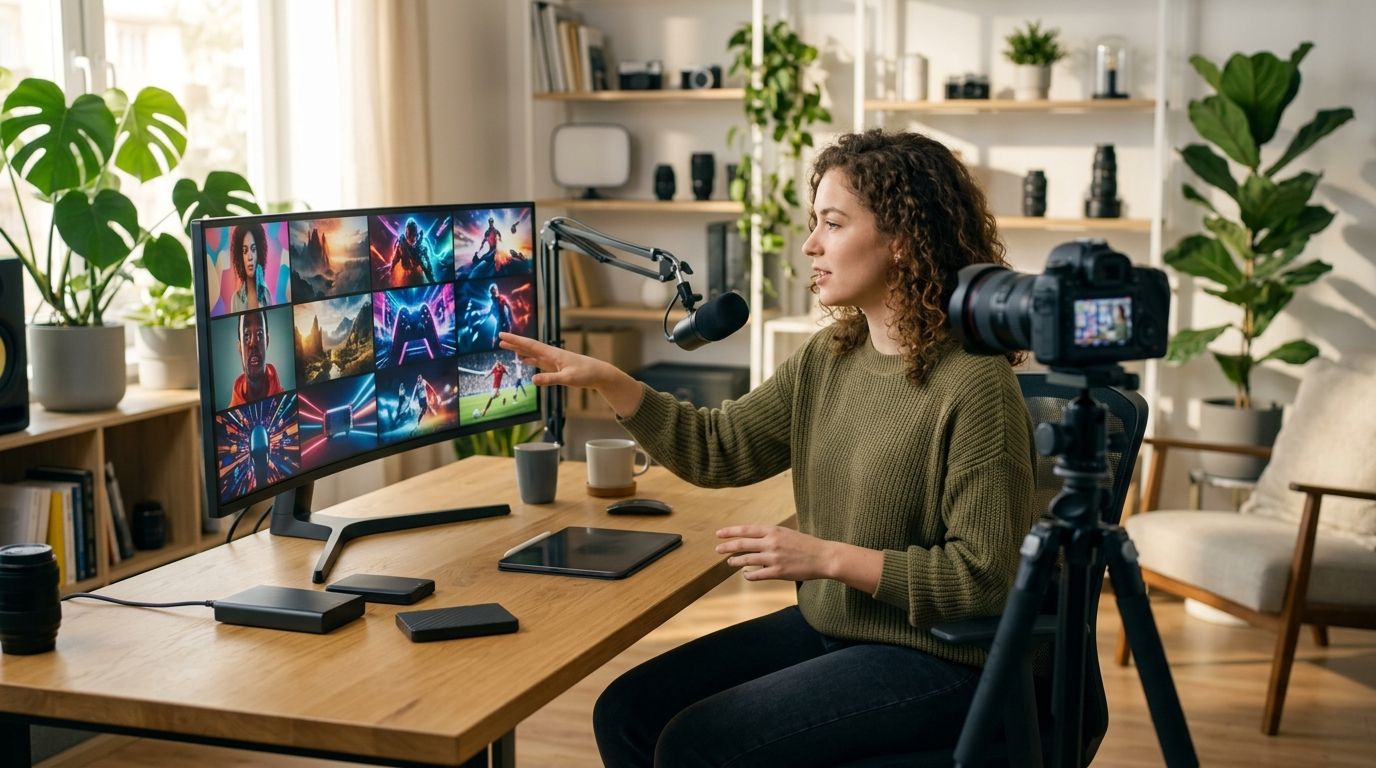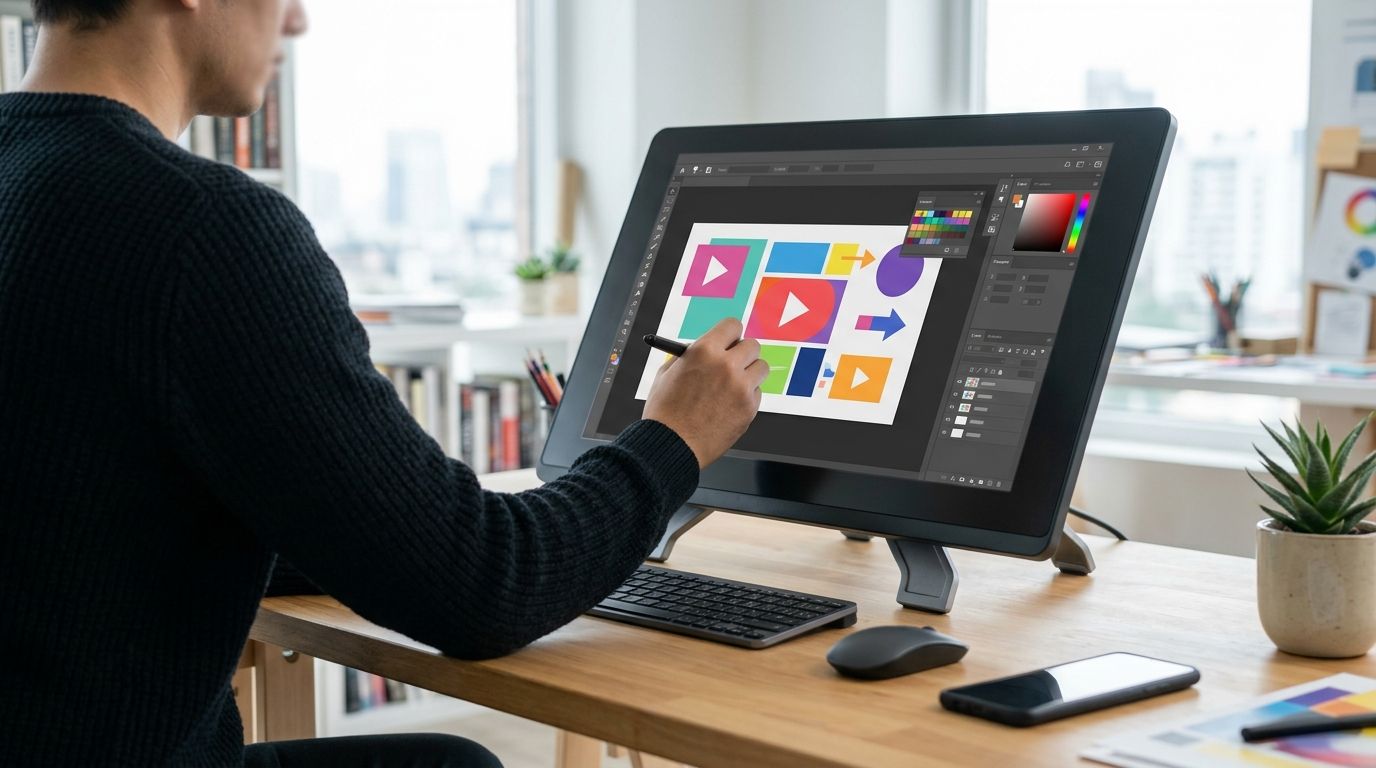
Best overall: Canva. Best for a repeatable channel system: Figma Community. Best for quick edits with built-in design tools: Adobe Express. These are the best free YouTube thumbnail templates in 2026 when you judge them by the job that matters: making the thumbnail and title work together.
- Canva is the best free YouTube thumbnail template starting point for creators who need a fast, editable layout.
- Figma Community suits channels that want a repeatable thumbnail system across regular uploads.
- Adobe Express suits quick edits, but check every asset before committing to a design.
- A template gives you a layout; your subject, image and title give viewers a reason to click.
Why this matters
A thumbnail template can solve spacing. It cannot decide what makes your next upload interesting. For an automotive reveal, a fishing challenge or a documentary, the frame has to show the specific tension in this video. The title then supplies context the image cannot carry.
That is the line between using a template and copying one. In 2026, you can start with a free layout and still end up with packaging that looks like every other video in your niche. Clickologi offers thumbnail design and packaging strategy for creators; that is a different choice from editing a template yourself. Start with the free option when you can make the creative decisions. Get help when the layout is easy but the angle is not.
What makes the best free YouTube thumbnail templates?
Judge the template before you replace a single image. A polished preview is not proof that it will work for your upload.
- A clear subject: You should be able to tell what gets attention first. If the template needs a paragraph of text to explain itself, keep looking.
- Room for your actual image: A layout built around a stock portrait will not automatically fit a boat, a car interior or an archival photograph. Check the crop before you commit.
- A useful relationship with the title: The thumbnail should add information or emotion, not repeat the headline word for word.
- Editable hierarchy: You need control over image size, contrast, text placement and the focal point. Decorative elements are secondary.
- A repeatable workflow: Regular uploads need consistency without making every video look identical. Look for layouts you can adapt to different subjects.
- A genuinely usable free starting point: Check the specific template, fonts and assets you select. A free editor does not make every design element free to use.
Best free YouTube thumbnail templates are starting structures, not finished packaging. Pick the editor that matches how your channel works, then rebuild the template around the video's strongest visual idea.
Best free YouTube thumbnail templates at a glance
| Option | Best for | Standout feature | Key limitation |
|---|---|---|---|
| Canva | Fast, one-off thumbnail drafts | Editable YouTube thumbnail layouts | A familiar template can look generic without substantial changes |
| Figma Community | A repeatable channel system | Community-made files you can adapt into reusable layouts | More setup and design judgment required |
| Adobe Express | Quick edits with built-in design tools | Thumbnail templates in an image-editing workflow | You must check whether selected assets are available for free use |
The ranking is a decision tree, not a claim that one editor produces a higher CTR. No template can supply the moment, conflict or payoff from your footage. That part is yours.
1. Canva: best free YouTube thumbnail templates for fast drafts
Canva is the default pick when you need to get from an empty canvas to an editable thumbnail quickly. Its thumbnail layouts give you a place to start with text, imagery and hierarchy. Replace more than the photo: change the crop, remove unnecessary shapes and rewrite the text around the actual upload.
For a fishing video, a template that frames a person on one side and a subject on the other can be useful. The fish, expression and title still need to tell one coherent story. If the template's text says what the title already says, use the space to show the catch instead.
Canva pros:
- You can start from a thumbnail-specific layout instead of arranging every element from scratch.
- Editable text and image placement make it practical for a solo creator preparing an upload.
- A saved layout can help keep recurring channel elements consistent.
Canva cons:
- Recognizable template styling can make unrelated uploads look alike.
- A layout designed around its sample image can fall apart when you add your own frame.
- You must check individual assets and fonts rather than assume everything in a design is free to use.
Best for: Growing solo creators who need a draft they can reshape around each video.
Verdict: Buy. Use Canva as the fast starting point in 2026, then cut anything that does not make the subject clearer. If you change only the words and photo, you have not solved the packaging problem.
2. Figma Community: best for a repeatable channel system
Figma Community contains design files shared by their creators, including thumbnail layouts. The advantage is not finding one perfect thumbnail. It is taking an editable file and building a consistent working system for a channel that uploads regularly.
Think in components: a place for the subject, a limited text area and a consistent treatment for recurring series. Then let the video determine what goes inside those spaces. A documentary channel can keep recognizable framing without forcing every episode into the same expression, color treatment or reveal.
Figma Community pros:
- Editable files give you control over layout and repeated visual elements.
- A reusable structure can make it easier to prepare thumbnails for a regular upload schedule.
- You can keep series-level consistency while changing the main image and hook.
Figma Community cons:
- Finding a suitable community file takes more judgment than choosing a ready-made preview.
- Shared files vary; inspect the design and its usage terms before relying on it.
- The workflow asks you to make more layout decisions yourself.
Best for: Established channels that want a reusable thumbnail system rather than a new look for every upload.
Verdict: Buy. Choose Figma Community in 2026 when repeatability matters and someone on the channel can maintain the design file. Skip it if the extra setup will slow down every upload.
3. Adobe Express: best for quick edits with built-in tools
Adobe Express offers YouTube thumbnail templates you can edit with its design tools. It fits a creator who wants to place an image, adjust text and produce a draft without first building a channel-wide design system. Pick a layout because it frames your subject well, not because its sample thumbnail looks finished.
For an automotive upload, start with the car detail or moment the video actually covers. If the title identifies the model and the decision, the thumbnail can show the part, reaction or comparison that makes that decision worth watching. A decorative template headline adds noise when it does neither.
Adobe Express pros:
- Thumbnail layouts provide an immediate structure for image and text.
- Its editing workflow suits a quick draft built around an existing photo.
- You can test different arrangements without committing to a fixed channel template.
Adobe Express cons:
- A polished sample design can distract from whether your own image works in the layout.
- You must check the availability of the particular template and assets you select.
- Starting fresh each time can make channel consistency harder to maintain.
Best for: Creators who need a quick editable draft and do not need a reusable design system.
Verdict: Hold. Adobe Express is a sound alternative in 2026 if its editing workflow suits you, but choose Canva first when speed from template to draft is the deciding factor.
How to turn a free template into better packaging
The editor matters less than the decisions you make inside it. Use this sequence before you settle on a thumbnail for the next upload.
Pick the subject
Write down what viewers should notice first: the damaged component, the unexpected catch, the person at the center of the story. Make that subject readable without the title. If you cannot name it, the thumbnail is trying to show too much.
Find the moment
Choose an image that represents a real moment or question from the video. For an outdoors upload, a wide scenic shot can establish setting but hide the reason to click. A tighter crop around the challenge often gives the layout a clearer job. Do not turn a minor moment into a promise the video cannot keep.
Set the text
Treat thumbnail text as an addition to the image, not a caption for it. Ask what a viewer still needs to know after seeing the frame. Sometimes the answer is nothing; the title can carry the words. When text earns a place, delete the template's sample copy before writing your own.
Check the title
Read the title and thumbnail as a pair. If the title says the result and the image shows the result, you have used both surfaces to deliver the same information. One can set up the question while the other supplies the visual evidence. The strongest pairing makes each element do a different job.
Check the crop
YouTube's custom thumbnail guidance specifies a minimum width of 640 pixels and recommends a 16:9 aspect ratio. A 1280-pixel-wide by 720-pixel-high canvas follows that shape. Those dimensions keep the file in the right format; they do not make small text or a crowded composition readable. View the draft at a much smaller size before you call it done.
For a channel that uploads regularly, save what worked in the process: where you placed the subject, which information stayed in the title and which elements you removed. Do not save a template as a rule that every upload must follow. An interview, a reveal and a field report need different visual answers.
Get help with your next thumbnail
Bring the video angle and title into the thumbnail decision.
How these options were ranked
The ranking follows the criteria above: a clear subject, adaptable image space, a useful thumbnail-title pairing, editable hierarchy, repeatability and a usable free starting point. Canva ranks first for the creator who needs a fast draft. Figma Community moves ahead when the channel needs a system. Adobe Express remains an option for quick edits.
This is not a CTR ranking. Clickologi says its client channels average 8.9% CTR, but that agency-reported figure does not measure Canva, Figma Community or Adobe Express, and it does not predict your result. Judge your own packaging against your channel's videos and the promise each upload makes.
Which free YouTube thumbnail template should you choose?
Choose Canva if you are undecided. It gives you the quickest route to a layout you can reshape around a specific video. Choose Figma Community if regular uploads have made consistency a bigger problem than getting started. Choose Adobe Express if you prefer its editing workflow and need a quick draft rather than a channel system.
None of those choices replaces the creative decision. A template can hold a picture and words; it cannot decide which picture and words make your video distinct. If your thumbnails look tidy but you keep struggling to connect the hook, frame and title, Clickologi thumbnail design and packaging strategy addresses that decision directly.
FAQ
What are the best free YouTube thumbnail templates in 2026?
Canva is the best starting point for fast thumbnail drafts in 2026. Figma Community fits a repeatable channel system, while Adobe Express suits quick edits; check the specific assets you choose for free use.
Is Canva or Figma Community better for YouTube thumbnails?
Canva is better for getting an editable draft ready quickly. Figma Community is better when you want to maintain a reusable design system across regular uploads.
Can a free template improve YouTube CTR?
A free template can help you organize a clearer thumbnail, but it cannot guarantee a CTR change. The image, title and video promise still have to work together.
What size should a YouTube thumbnail be?
A 1280-pixel-wide by 720-pixel-high canvas uses a 16:9 aspect ratio. YouTube's custom thumbnail guidance lists a minimum width of 640 pixels; check the current upload requirements before exporting.
Should thumbnail text repeat the YouTube title?
No. Use the thumbnail to add visual evidence or a short hook, and let the title provide context the image cannot carry.
Are all assets in a free thumbnail editor free to use?
No. Check the particular template, font and image assets you select before using a design; access to a free editor does not settle the terms for every element.
When should a creator use a thumbnail designer instead of a template?
Use a designer when choosing the hook, image and title has become the bottleneck. Clickologi offers thumbnail design and packaging strategy for creators; a template mainly supplies a layout.
One last thing
Before your next 2026 upload, hide the title and ask someone what the thumbnail shows. Then hide the thumbnail and read the title alone. If both give away the same detail, change one. That check costs no new template and tells you more about your packaging than another hour of browsing designs.